
Digicars
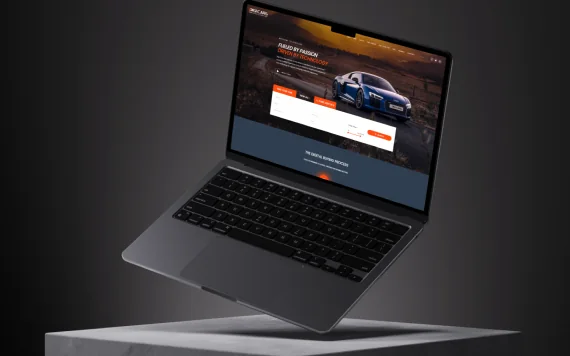
Vehicle search and a digital buying journey
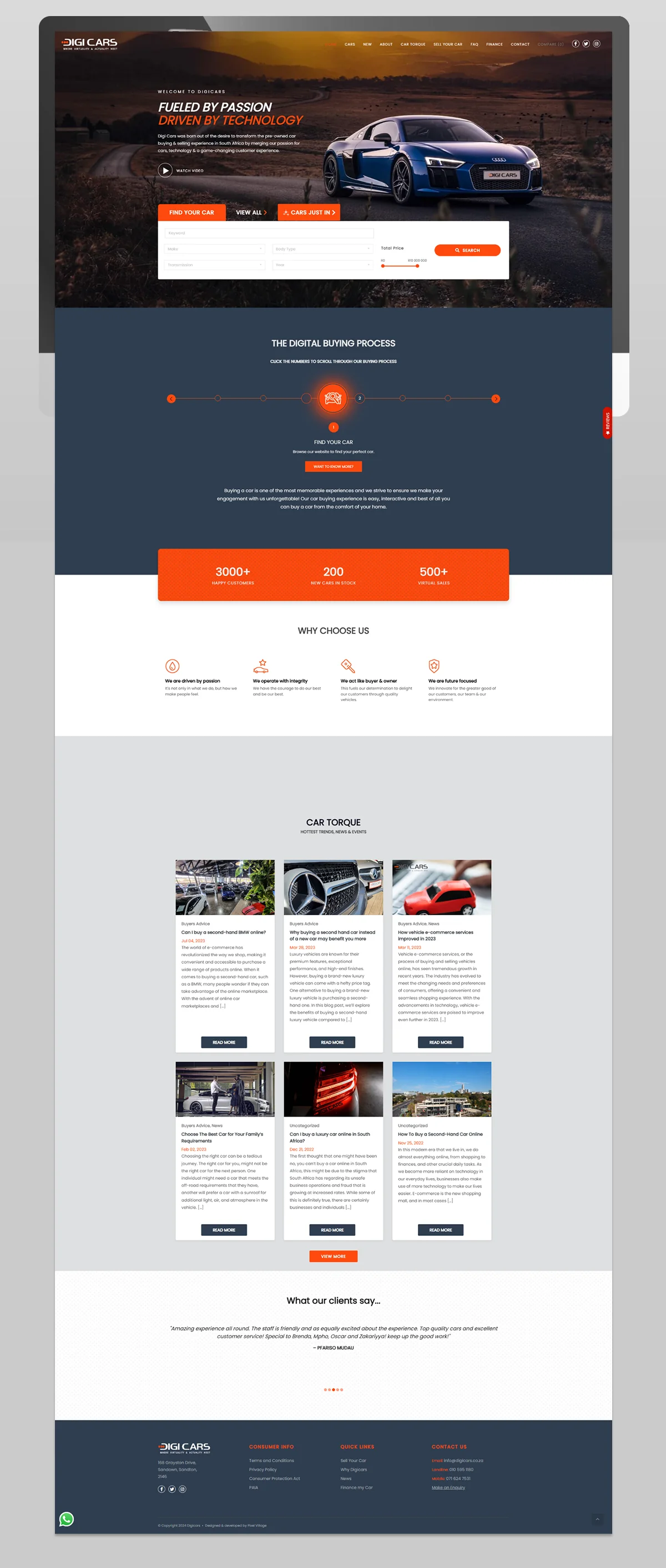
The Digicars homepage gives visitors a place to start looking while the car is still the main visual. A blue sports car fills the right side of the opening image; the introduction sits to its left, with a white search panel below. Orange tabs offer three starting points: “Find your car”, “View all” and “Cars just in”.
That choice is worth looking at closely. Someone with a particular vehicle in mind can begin with filters, while someone browsing can choose the wider stock or recent arrivals. Further down, a numbered buying-process section introduces the steps, followed by dealership information, articles and contact details.
What you can inspect
- Search against a large vehicle image. The white panel separates the controls from the dark photograph. Its visible fields include keyword, make, body type, transmission, year and total price, with an orange search button at the right.
- A buying guide with a clear sequence. A horizontal line of numbered points sits on a dark blue background. The captured first step is “Find your car”, with a short explanation and a button for more information.
- Articles with room to compare topics. The “Car Torque” section uses a three-column card grid. Each card has a photograph, title, excerpt and “Read more” button, so you can scan several subjects before opening one.
- Repeated visual cues. Orange marks tabs, buttons and icons; dark blue returns in the process section and footer. The footer groups consumer information, quick links and contact details into separate columns.
The original gallery below opens at full size so you can inspect the layout. This archive records the presented interface. It does not establish the production stack, live integrations, authorship of every element or measured business results.
What this means for a similar project
We would use this gallery to discuss where your visitors should begin: a broad browse, a filtered search or the newest arrivals. Bring a few representative vehicle listings and the questions your sales team hears most often. Those examples help decide which filters belong on the opening screen and what the buying guide needs to explain.
For example, if a visitor enquires about a car that has just sold, decide what they should see next and how your team should handle that enquiry. Vehicle identity, availability, delayed stock updates and sales follow-up need agreement alongside the page design; the screenshots alone cannot show how those connections work.
Explore vehicle stock and dealership integration or review website and service pricing. To discuss similar work, include this project link and the task you want your own customers or team to complete.
Digicars
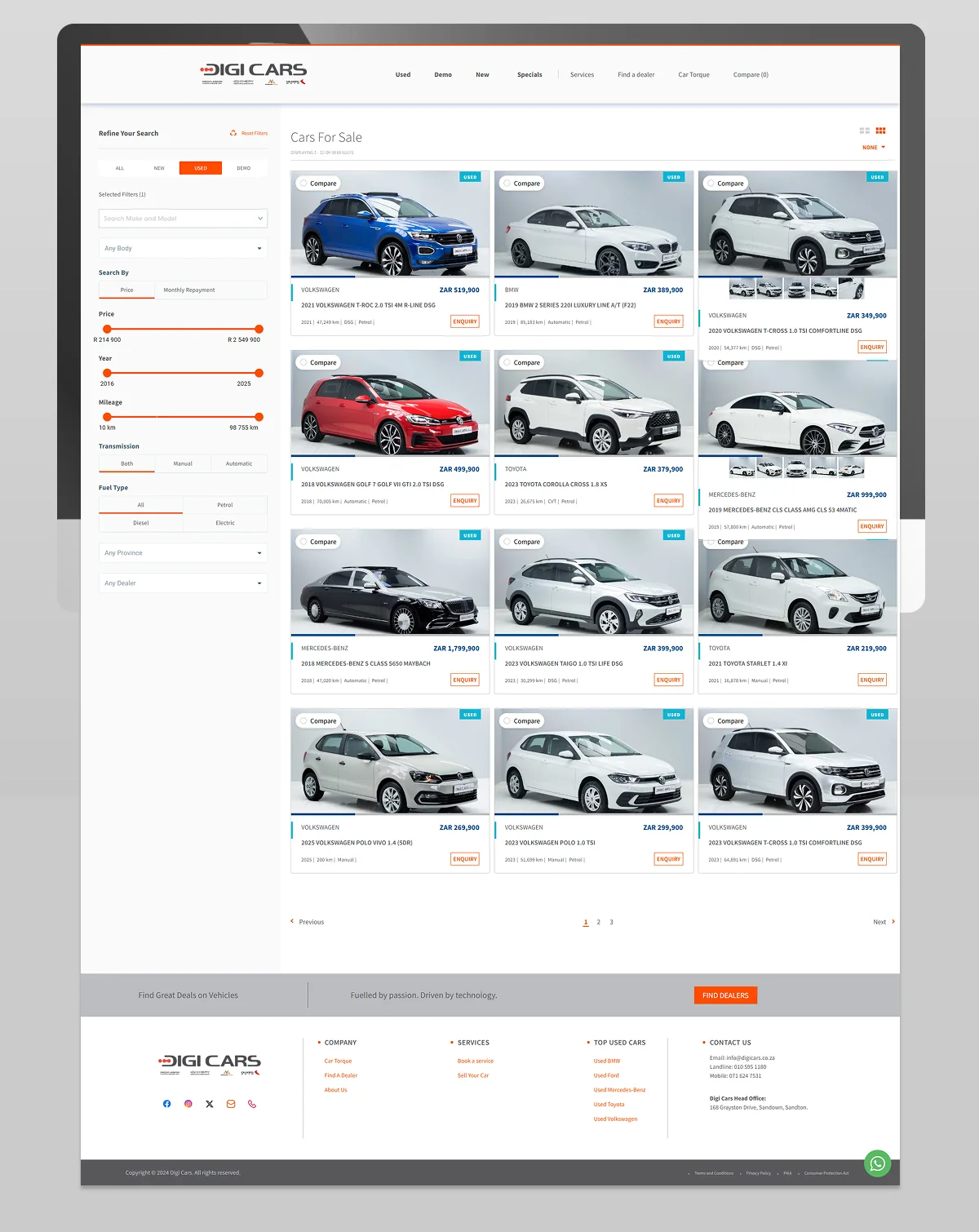
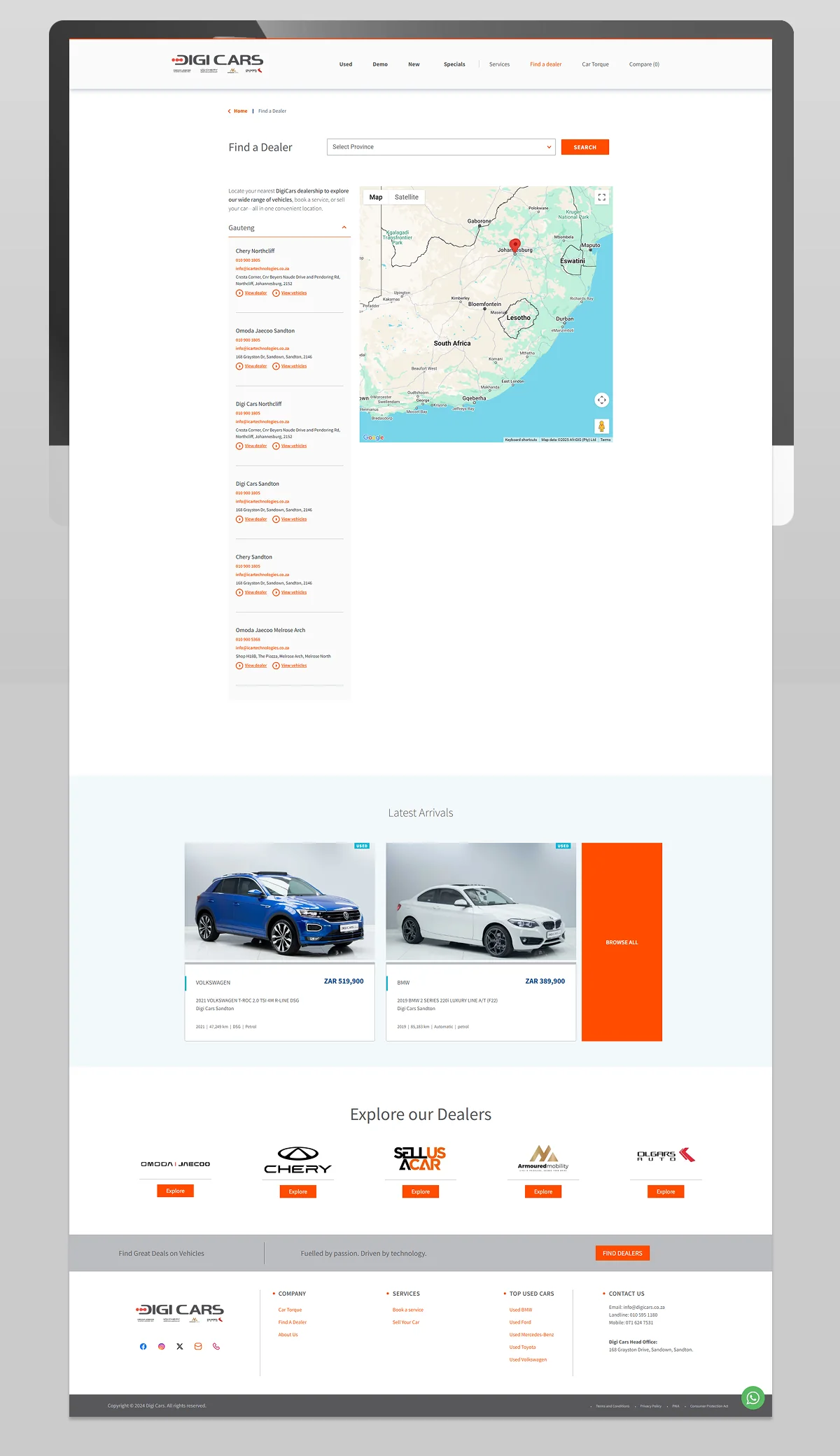
Project gallery.
Open a visual to explore it at full size. Use the arrow keys to move through the gallery and Escape to close.

Keep the right things connected.
Vehicle Stock Feeds & Dealership Website Integration
Connect a dealership stock source with its website: vehicle identity, images, price updates, sold listings and feed monitoring, scoped to the actual source system.
Service Pricing & Project Estimators
Choose a service estimator, explore scope and separate known costs from items that need a custom quote.
Dealership Websites & Automotive Systems
Connect vehicle discovery, campaign landing pages and dealer enquiries with practical website, marketing and integration work for automotive businesses.
Start a conversation
Tell us what you are working towards. We’ll help you find a practical next step.